The setup wizard makes it easy to get your device up and running.
Before you begin, please have your internet provider's connection details ready.
You will need these to set up the telephone function.
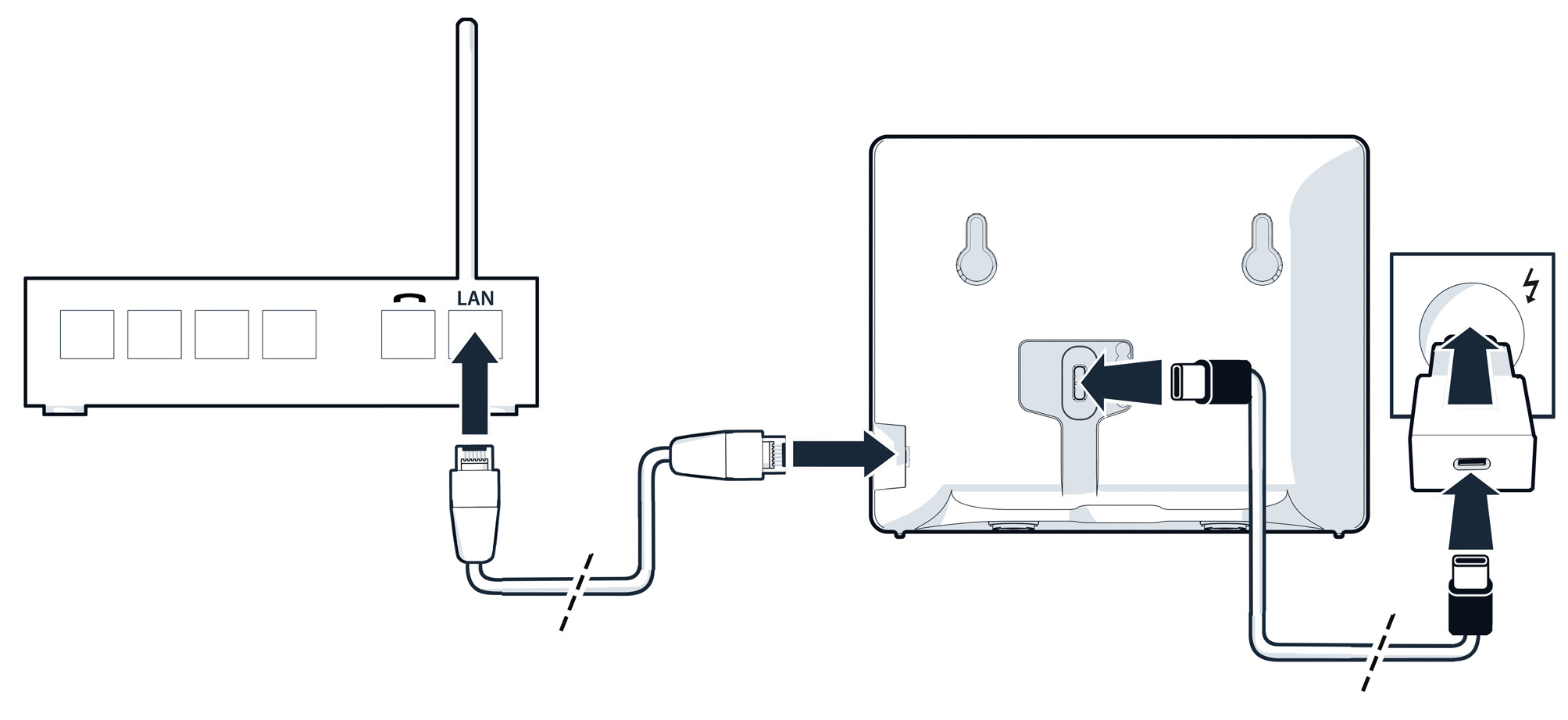
- Connect the supplied network cable to the base station and your router.
- Then connect the device to a suitable USB-C power supply using the USB-C cable provided and plug it into a power socket.
The local IP address of your device is required to access the web configurator.
- Scan the QR code on the right-hand side of the back of your base station using a smartphone or tablet. Alternatively, open your internet browser on a PC and enter the following address: gigaset-config.com. The user interface of your base station with the setup wizard will be displayed. If several devices are displayed, select Gigaset BasicLine IP.
- Follow the setup steps displayed.
- Select your language and country.
Information
Selecting your country will configure the settings required for the proper operation of your base station.
4. Set a password and write it down in a safe place.
If you forget or lose your password, you will need to reset the device to its factory settings in order to regain access to all settings.
5. Now set up the telephone connection.
To do this, you will need the access data from your internet service provider.
- Select your country and provider.
- Then enter the login details (usually your user name and password).
To make it easier to distinguish between the different telephone lines later (up to four connections can be set up), assign a meaningful account name in the first line – for example, the name of a user, a call group or a department.
In the last line of the input mask, you can enter a name that will be displayed on the called party's display.
If you leave this field blank, your user name or phone number will be used automatically.
6. Register the handset on your base station.
After you have set up the first connection, the following message appears
Successfully completed
Your account has been successfully set up. Please restart the VoIP wizard to create a new account.
You can now either set up another telephone connection or register a handset.
If you want to register a handset, press the button.
The handset wizard will now open. DECT registration
To register a handset, you must enter a PIN on the handset. You can set this PIN here.
If you are setting up the device for the first time, you can leave the PIN at 0000 for easier registration.
Then change the PIN to prevent unauthorised persons from registering a handset.
Once the handset has registered with the base station, you must specify which line it should use.
If you have only set up one telephone connection, select this for incoming and outgoing calls.
If you have multiple connections, you can freely determine which line the handset should use for outgoing calls and which line incoming calls should use.
7. The handset is now ready for use.
You can conveniently register additional handsets via the user interface.
Check the compatibility of your handsets online: www.gigaset.com/kompatibilitaet