Opmerking: Deze inhoud is momenteel alleen beschikbaar in het Duits en Engels. U kunt de ingebouwde vertaalfunctie van uw browser gebruiken om deze pagina in uw gewenste taal weer te geven. Instructies zijn beschikbaar voor Google Chrome, Microsoft Edge of Mozilla Firefox.
With mobile WLAN hotspots you can enable the data connection of the smartphone to other devices. For example, use a smartphone connection to surf the internet with your notebook.
Note:
Using hotspot or tethering connections might entail additional charges. Contact your mobile operator as required.
Hotspots and tethering require high levels of accu power.
- Connect the smartphone to a power supply when using hotspot and tethering.
- Disable hotspot and tethering when you do not need them.
Set up your device as a WLAN hotspot:
Android 13 | Android 14/15 |
| 1. Open settings. | 1. Open settings. |
2. "Hotspot and tethering"
| 2. "Network ans Internet" |
3. "Wi-Fi hotspot"  | 3. "Hotspot and tethering" |
4. Enable/disable the function with the switch. You can change the network name, password and frequency band for acces points.  | 4. Enable/disable the function with the switch. You can change the network name, password and frequency band for acces points. 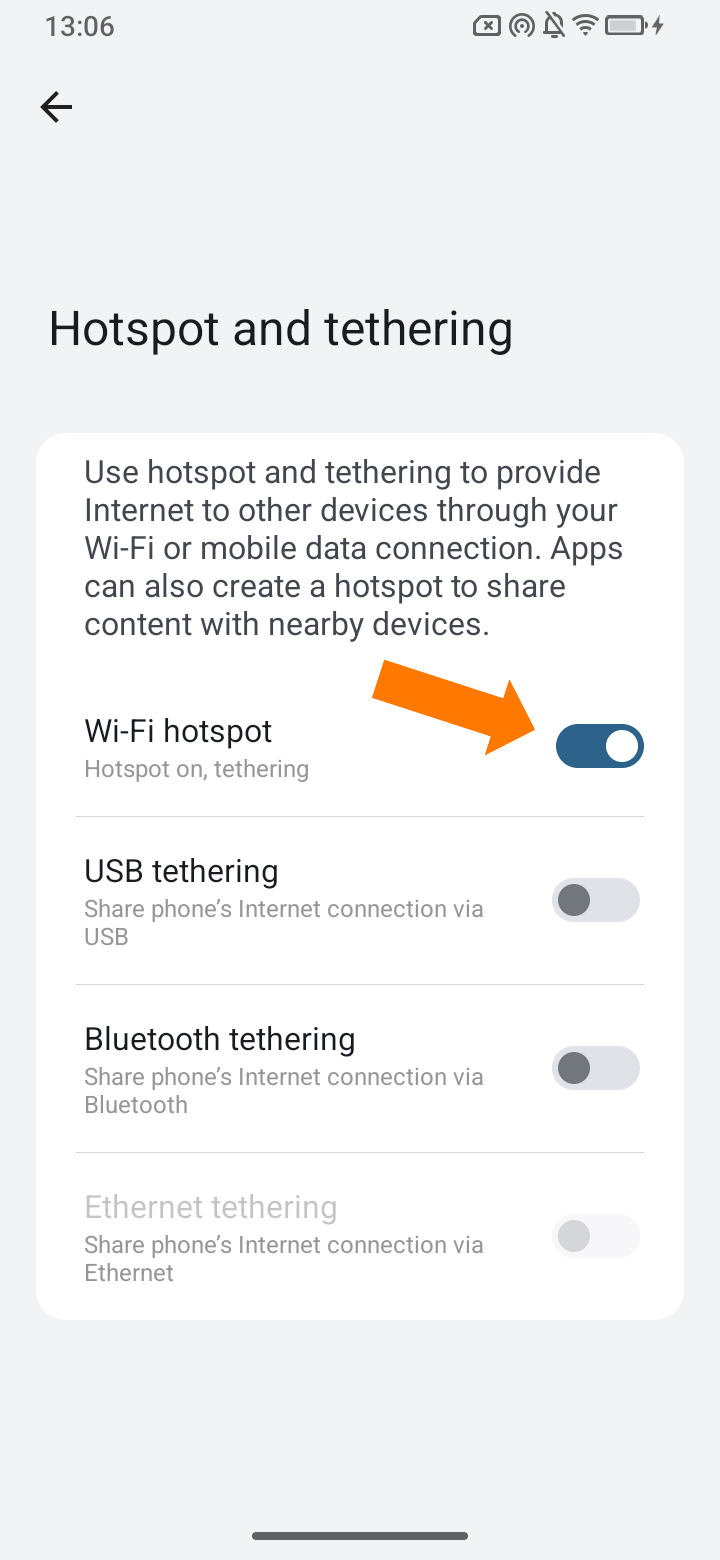 |
5. When the hotspot is enable the icon is displayed in the Status bar.  | 5. When the hotspot is enable the icon is displayed in the Status bar.  |

Connecting a device to the WLAN hotspot:
To connect, you need the name and password of the hotspot.
Android 13/14/15 | ||
1. Open the list of WLANs within range.
| 2. Select network and enter the password.
| 3. "Connect"
|


