Opmerking: Deze inhoud is momenteel alleen beschikbaar in het Duits en Engels. U kunt de ingebouwde vertaalfunctie van uw browser gebruiken om deze pagina in uw gewenste taal weer te geven. Instructies zijn beschikbaar voor Google Chrome, Microsoft Edge of Mozilla Firefox.
What are the advantages of transferring my smartphone screen to a larger screen (TV)?
Transferring the smartphone screen to a larger screen enables a more convenient and clearer display of content, which is particularly useful when several people are taking part in a presentation or when detailed information needs to be more visible. In addition, this function makes it possible to enjoy mobile applications and games on a larger display, which significantly improves the user experience.
MHL function / connection to TV via USB-C:
Our smartphones do not support an HDMI connection via the USB-C port.
How can you transfer your screen instead?
You can transfer (stream) your Gigaset smartphone to a screen via Wifi Direct.
To do this, your smartphone and the screen (TV) must be connected to the same WLAN.
| Android 13/14 | Android 15 |
|---|---|
| 1. Open the settings. | 1. Open the settings. |
2. Click on "Connected devices". | 2. Click on "Connected devices".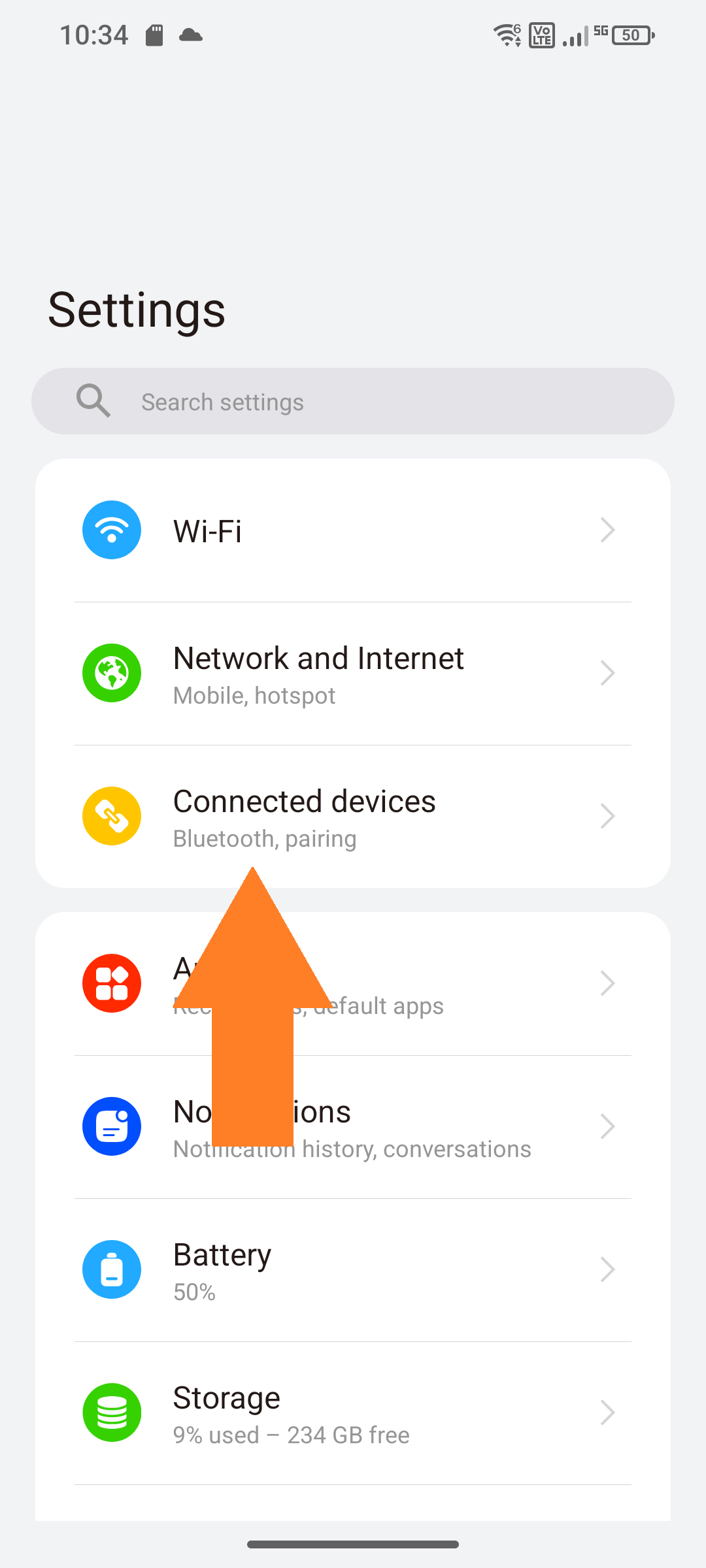 |
3. Now click on "Connection preferences". | 3. Now click on "Connection preferences".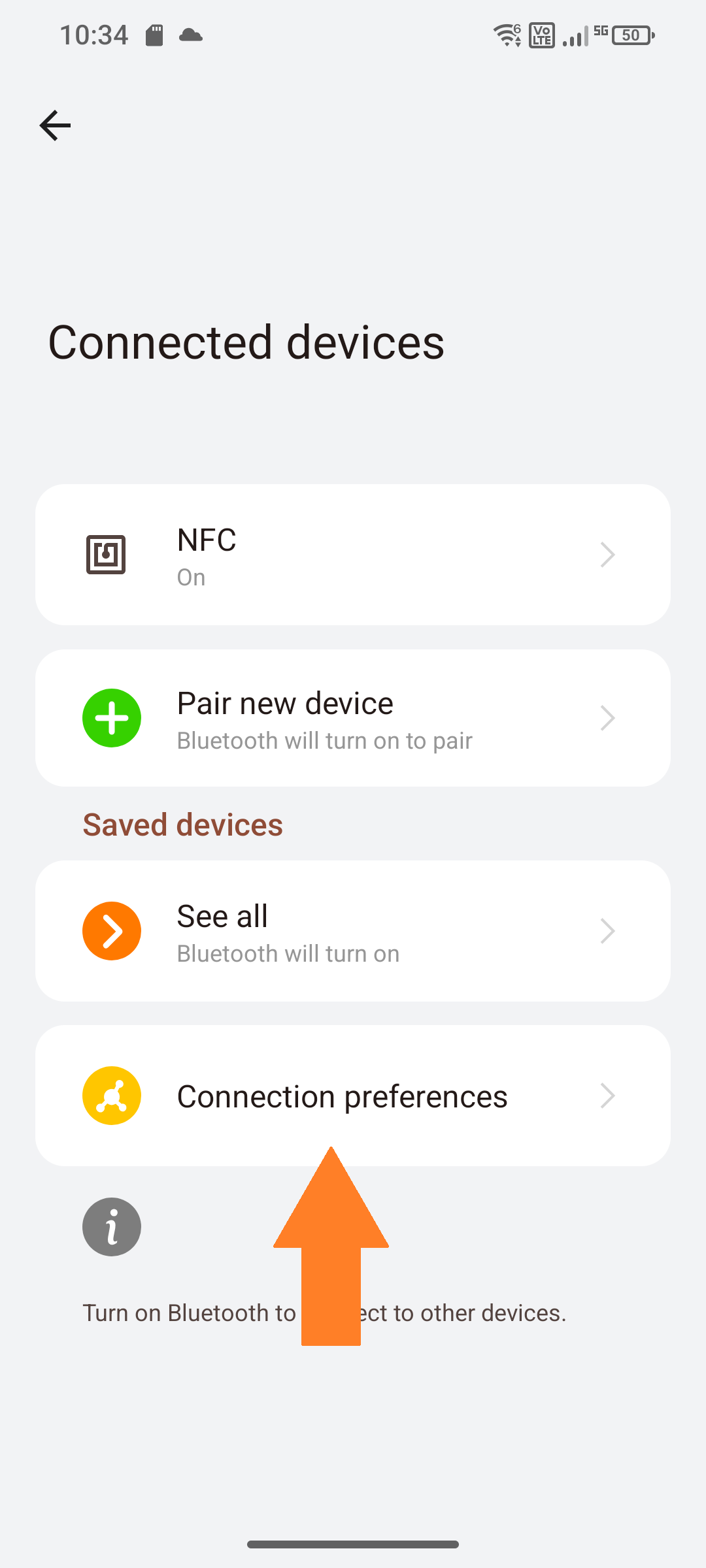 |
4. Now click on "Cast". | 4. Now click on "Cast".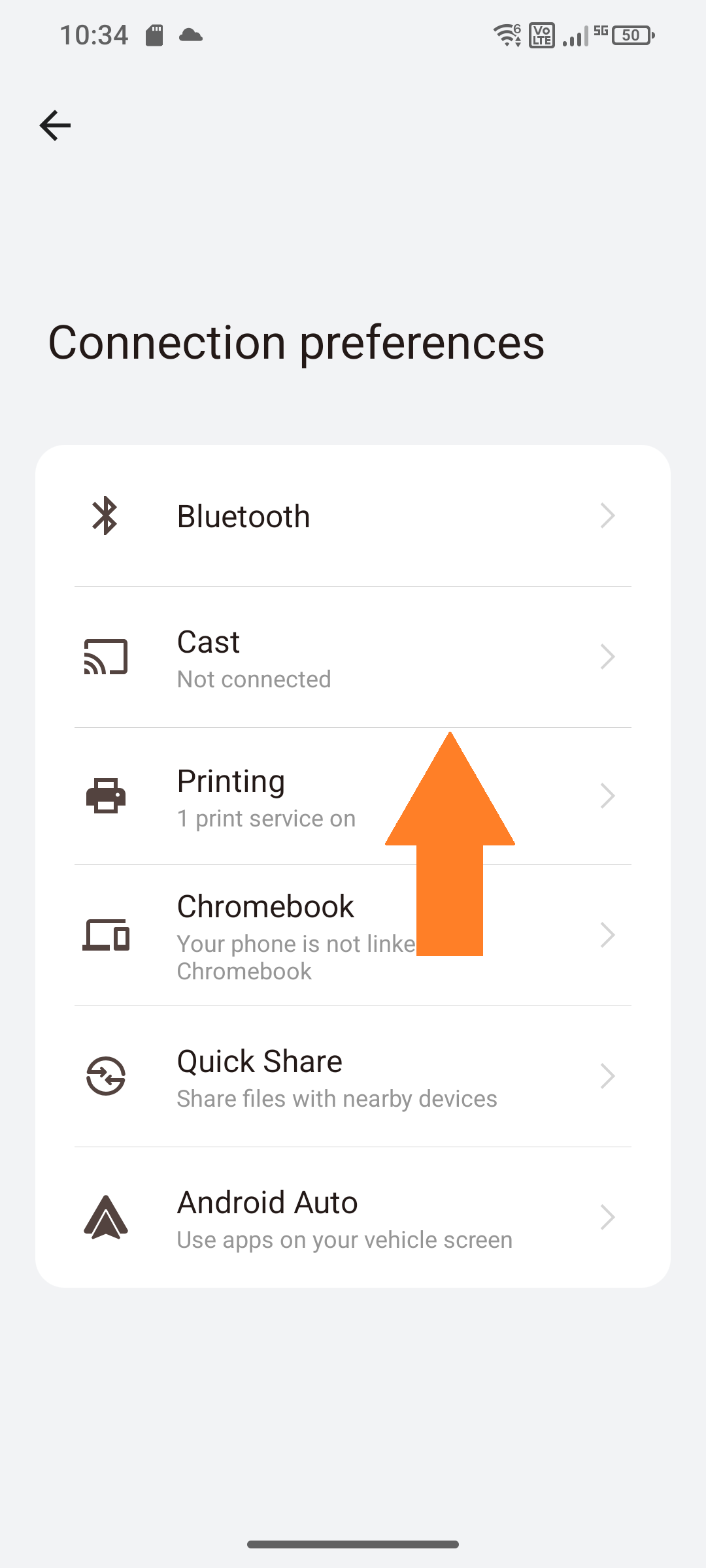 |
| 5. Click on the desired screen (here: QSA-Display-Main).  | 5. Click on the desired screen (here: QSA-Display-Main). 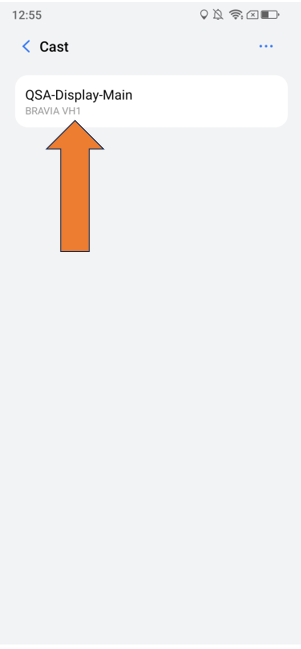 |
6. Now click on "Start now". | 6. Now click on "Start now".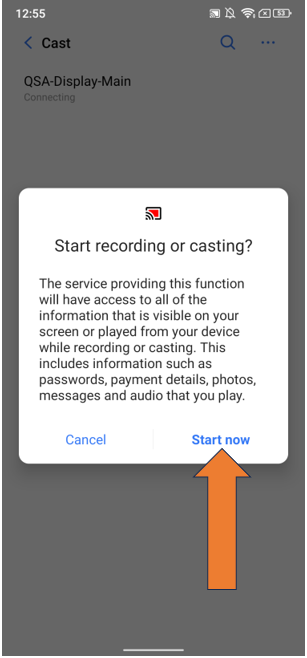 |