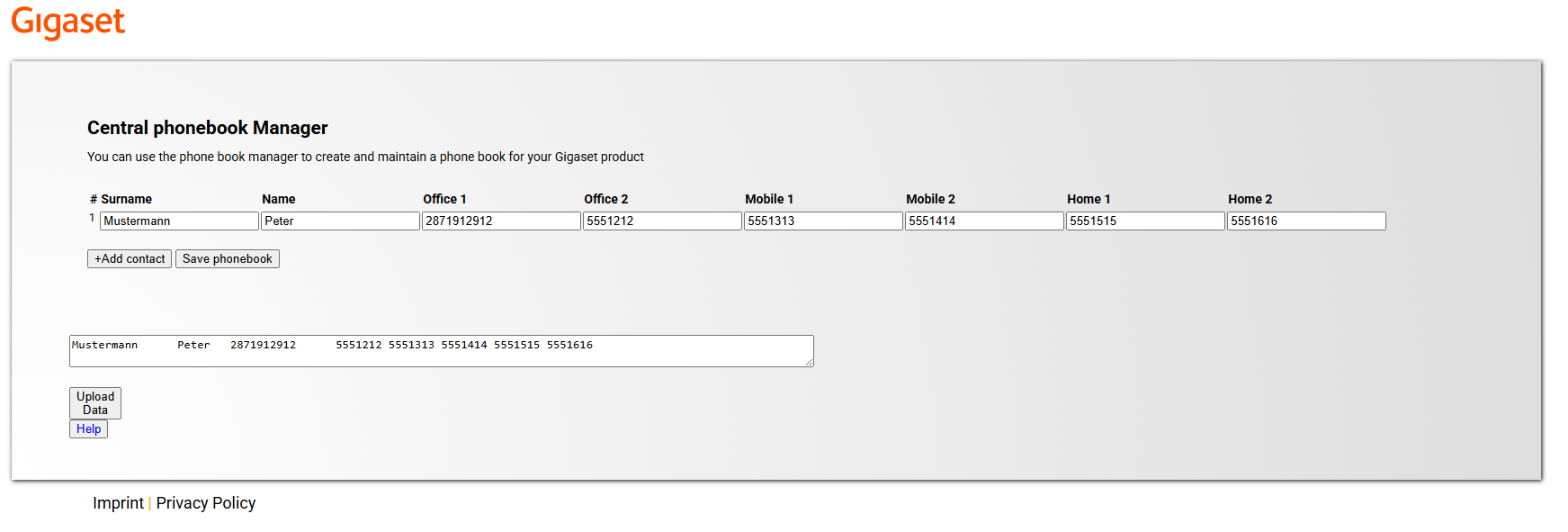
Your BasicLine IP includes a central phone book with a capacity of approximately 300 entries. You can use this phone book by accessing it via a compatible handset registered to the base station (see user manual). You can also back up your contacts and save the file securely.
Gigaset provides a free HTML file for the purpose of creating and maintaining the phone book. To do this, please first unzip the ZIP file after downloading it. You can then open the file by double-clicking on it. Your default browser will open. No installation takes place on your hard drive.
The phone book you have created is saved in an XML file. If you wish to create the phone book using other tools, please refer to the structure below.
Structure of the XML file:
The contacts manager provides a field for the surname and a field for the first name. You can enter two phone numbers for each category: work, mobile and home.
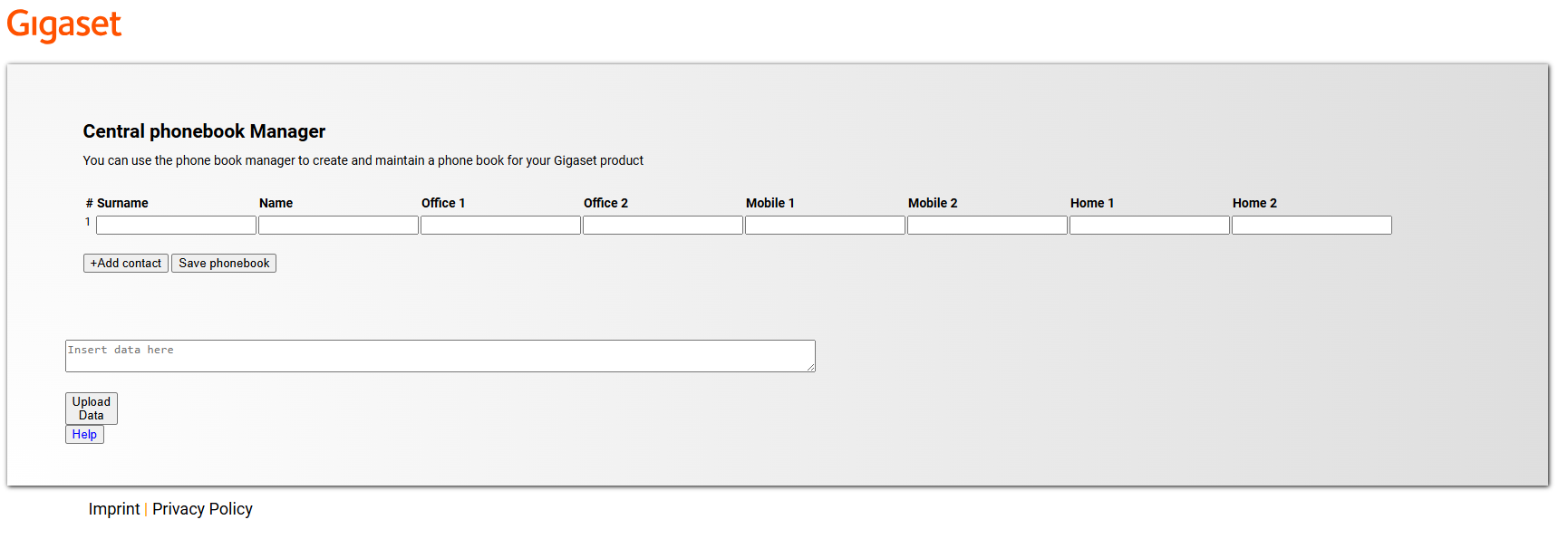
Please enter the surname, first name and at least one phone number to save the contact. The "+" symbol for international phone numbers cannot be saved. For international numbers, please enter them as shown in the example below:
Replace +49 with 0049
Please click on "Add contact" after entering each phonebook entry. Once you have finished entering your phonebook, please click on "Save phonebook". The file will be saved in your chosen default folder for downloads.
The file can then be uploaded to the base station via the Basicline IP web interface.
It is not possible at this stage to delete phonebook entries that are already in your base station’s central phonebook. Please delete any entries you no longer require via your handset.
If you wish to amend an existing entry, you can do so via your handset or by re-entering the phonebook entry in the Phonebook Manager with the same name but a different phone number.
You can also maintain your table in Excel and then copy it into the Phonebook Manager.
To do this, create a table and enter the data according to the following pattern: first a field for the surname, then a field for the first name, followed by up to 6 fields for the phone numbers.

Select and copy the entire section of your spreadsheet containing the data you have entered, and paste it into the empty box below the input form. Then click on "Upload Data" to convert the data into entry fields.